
Power BI has always given us calculated columns as a way to extend our data models with row-by-row logic. But there’s always been one hard limitation: calculated columns are computed at refresh time and stored in the model, which means every user sees the exact same value regardless of who they are or where they’re from.
That changes with user-aware calculated columns, a preview feature introduced in the April 2026 Power BI update. With this feature, you can now create calculated columns that evaluate at query time and respond to the identity of the user viewing the report. The result is a column that can show different values to different users all from a single dataset and a single model.
In this article, we’ll walk through how to enable the feature, how it works, and three practical use cases you can start using right away.
 After restarting, you’re ready to create your first user-aware calculated column.
 That’s all it takes. Now let’s look at the three main scenarios where this is genuinely useful.
 FORMAT() already accepts a locale parameter — USERCULTURE() simply passes in the current user’s locale at query time, so the month name is formatted in their language automatically.
USERCULTURE() = “de-DE”
FORMAT() already accepts a locale parameter — USERCULTURE() simply passes in the current user’s locale at query time, so the month name is formatted in their language automatically.
USERCULTURE() = “de-DE”
 USERCULTURE = “fr-FR”

What Makes a Calculated Column “User-Aware”?
When you create a regular calculated column, Power BI runs the DAX expression during table refresh and stores the result in the model. The value is fixed — it doesn’t change based on who is viewing the report or when. User-aware calculated columns work differently. By setting the Expression Context property of a calculated column to User Context, you tell Power BI to evaluate the expression at query time instead. This means the column can use DAX functions that return information about the current user, such as:- USERCULTURE() — returns the user’s locale setting (e.g. “en-US”, “de-DE”, “fr-FR”)
- USERPRINCIPALNAME() — returns the user’s email address (UPN)
- USERNAME() — returns the domainusername
- CUSTOMDATA() — returns a custom string passed via the connection string
Step 1: Enable the Preview Feature
User-aware calculated columns are currently in preview, so you need to turn the feature on manually before it appears in Power BI Desktop. Requirements: Power BI Desktop April 2026 update or later. If you’re on an older version, update first from the Microsoft Store or the Power BI download page. Once you have the right version:- Open Power BI Desktop
- Go to File → Options and Settings → Options
- Under the Global section on the left, click Preview Features
- Find “User-context-aware calculated columns” and check the box
- Click OK
- Restart Power BI Desktop
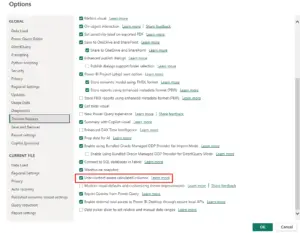 After restarting, you’re ready to create your first user-aware calculated column.
Step 2: Create a User-Aware Calculated Column
Creating a user-aware column follows the same flow as a regular calculated column, with one extra step — setting the Expression Context property.- In Model view or Data view, select the table you want to add the column to
- In the ribbon, click New Column
- Write your DAX expression in the formula bar
- In the Properties pane on the right, find the Expression Context property
- Change it from Standard to User Context
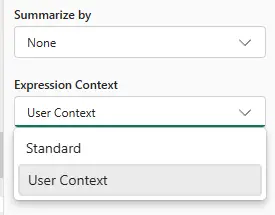 That’s all it takes. Now let’s look at the three main scenarios where this is genuinely useful.
Use Case 1: Localization — Multilingual Reports
This is the most straightforward use case. If your reports are viewed by users across different countries, you can use USERCULTURE() to automatically display values in each user’s language — without building separate reports or maintaining multiple datasets.The Scenario
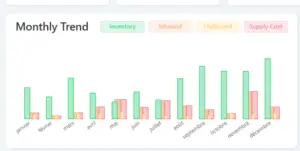
You have a date table with a Month Number column, and you want to display the full month name in the viewer’s language. A German user should see “Januar”, a French user should see “Janvier”, and an English user should see “January” — all from the same column.The DAX
Create a new calculated column on your Date table called Month Name: Month Name = FORMAT( DATE(2020, ‘Date'[Month Number], 1), “mmmm”, USERCULTURE() ) Set the Expression Context to User Context.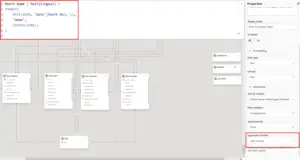 FORMAT() already accepts a locale parameter — USERCULTURE() simply passes in the current user’s locale at query time, so the month name is formatted in their language automatically.
USERCULTURE() = “de-DE”
FORMAT() already accepts a locale parameter — USERCULTURE() simply passes in the current user’s locale at query time, so the month name is formatted in their language automatically.
USERCULTURE() = “de-DE”
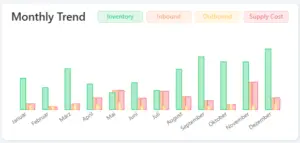 USERCULTURE = “fr-FR”
Use Case 2: Virtual Columns — No Storage Cost
This use case has nothing to do with user identity. Instead, it takes advantage of the fact that user-aware columns are not materialized.The Scenario
You have a Sales table with Quantity and Net Price columns. You want a Line Amount column that multiplies them but you don’t want it stored in memory (maybe the table is large, or you’re optimizing model size).The DAX
Create a new calculated column called Line Amount: Line Amount = Sales[Quantity] * Sales[Net Price] Set the Expression Context to User Context. Even though this expression doesn’t reference any user functions, setting it to User Context makes it virtual it won’t be stored in memory. Power BI will calculate it on the fly whenever it’s needed in a visual or filter.When to Use This
This is a good fit when:- The expression is simple (a multiplication, a lookup, a SWITCH on a static column)
- The table is large and storage cost matters
- You want to centralize logic in the model without the memory overhead of a materialized column
Ready to transform your data into stunning dashboards and reports?
👉 Join our Power BI Training and gain hands-on skills to turn insights into action.
Limitations to Know
User-aware calculated columns are powerful, but they come with a set of restrictions you need to be aware of before building your model around them:- Cannot be used in relationships — you can’t use a user-aware column as a key in a model relationship
- Cannot be referenced in standard calculated columns — a regular (Standard Expression Context) calculated column cannot reference a user-aware one
- Cannot be referenced in calculated tables — same restriction applies to calculated tables
- Cannot be referenced in RLS expressions — you can’t use them to define row-level security rules
- Query performance trade-off — because the column is not stored, it must be computed at query time. Simple expressions are fine; heavy logic on large tables can slow down reports
Wrapping Up
User-aware calculated columns are a genuinely new capability in Power BI — not just a small quality-of-life improvement. They blur the line between static columns and dynamic measures, and they open up three distinct scenarios that were previously awkward or impossible to handle cleanly:- Localization: one model, many languages, zero extra reports
- Virtual columns: centralized logic with no memory footprint
This feature is available starting with the Power BI Desktop April 2026 release. Enable the “User-context-aware calculated columns” preview feature under Options → Preview Features before using it.


