Power BI Financial Dashboard for Business Central: The 8 Reports Every Finance Team Needs
- Ayesha Binte Habib
Key Takeaways
- Business Central’s native reports are accurate but not self-serve while any customization requires developer.
- Budget vs. actual is the most common first request from BC finance teams.
- A daily sales report that takes two days to produce manually can run automatically in under two hours once the pipeline is in place.
- Multi-entity consolidation is not available in BC’s native reporting but is possible with a shared data model.
- Row-level security means cost centre managers see only their data, department heads see their department, and the CFO sees everything, controlled by model.
P.S. the key takeaways are not ai-generated.
Business Central holds your financial data accurately, but the problem finance teams run into is not the data, it is what happens when they try to do anything beyond the standard layouts. Every customization, every additional column, every department filter, every comparison view requires a developer working in AL code. A CFO who needs budget versus actual broken down by cost centerdoes not want to raise a ticket and wait three days. A Power BI financial dashboard for Business Central removes that dependency: the reports your finance team needs, built once on a governed data model, accessible to everyone without touching the ERP again.
Why Business Central’s Native Reports Are Not Enough for Finance Teams
Business Central’s built-in report layouts are accurate. The data is correct, the account structure is sound and for a straightforward period-end P&L the native output does the job.
The limitation is self-service. Any change beyond what ships with BC like rolling 12-month view, a budget comparison column, filtering by dimension, restructuring cost centres requires a developer writing AL code inside Business Central. Finance teams cannot make those changes themselves. Every non-standard report becomes an IT ticket. Every urgent request waits for development capacity. Finance directors end up exporting to Excel and building the comparison views manually.
This is the structural problem a Business Central financial reporting Power BI implementation solves. The data model is built once outside BC a star schema with fact tables for GL entries, AR, AP, cash and budget. Every report the finance team needs is served from that model. Business Central stays the source of truth. Power BI is the reporting layer. The finance team never needs to ask IT again.
The 8 Power BI Financial Dashboard Business Central Finance Teams Ask For First
1. Budget vs. Actual by Department: The Report Every Finance Team Requests First
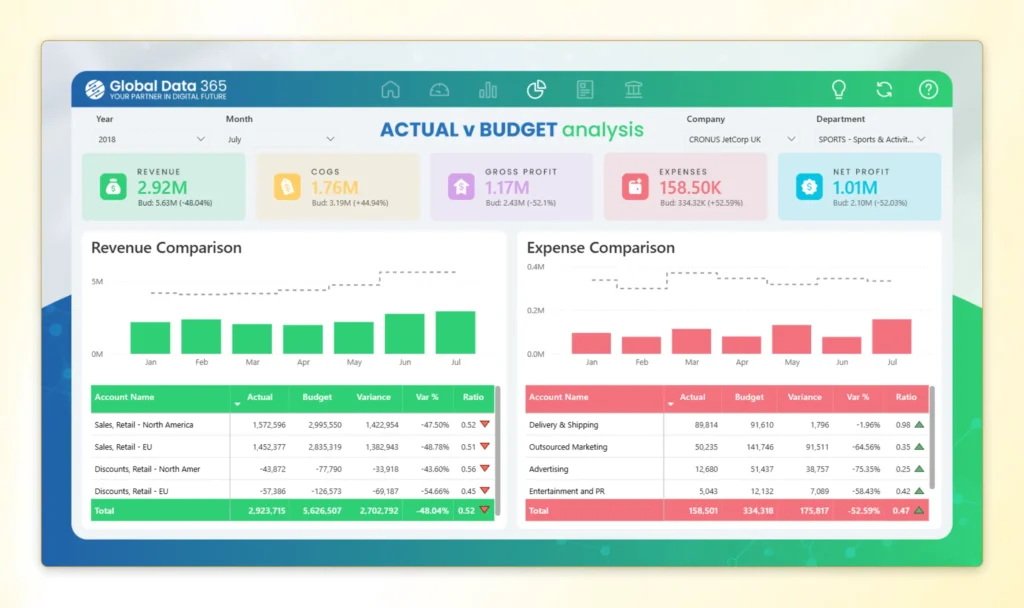
Almost every Business Central finance team we work with asks for this one before anything else. Business Central holds budget entries natively most clients have their annual budget loaded directly in BC but presenting actuals against budget, filtered by department or cost centre, with a variance column and percentage deviation, is not something the native report delivers cleanly without developer work.
A Business Central budget vs. actual Power BI dashboard built on a proper data model shows current period actual versus budget, YTD actual versus YTD budget, and the departments running over or under updated automatically from posted GL entries, no manual export, no Excel rebuild. A financial controller who previously spent Monday morning pulling this together by hand now opens it on a screen
2. Profit & Loss with Period Comparison
The standard BC P&L shows one period. What finance teams actually need is current month, prior month, prior year same period and YTD side by side, with variance and percentage change columns. A four-column comparative report the native BC layout cannot produce without AL development.
In Power BI it is a single DAX measure set applied to the GL fact table. A Business Central P&L report in Power BI that any finance team member can open, filter by entity or department, and use for month-end review without waiting on a developer.

3. Cash Flow Position and 30/60/90-Day Projection
Current cash across all bank accounts, combined with open AR and AP to project cash position over the next 30, 60 and 90 days. BC holds all of this data like bank ledger entries, open customer invoices, scheduled vendor payments but it does not surface it in one forward-looking view.
A Power BI cash flow dashboard for Dynamics 365 Business Central pulls from all three sources into a single projection. Treasury sees today’s cash position and the next 90 days of inflows and outflows before approving any payment run. It runs automatically, every day, without anyone building it.
4. Accounts Receivable Ageing with DSO Trend
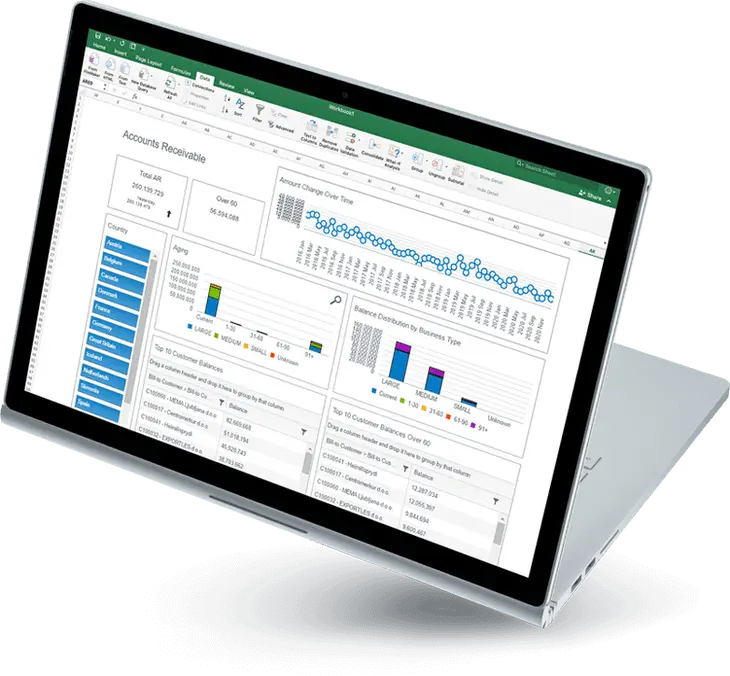
AR ageing by customer with bucket definitions matching your actual credit terms like 0–30, 31–60, 61–90, 90+ days combined with a Days Sales Outstanding trend line. A Business Central accounts receivable ageing Power BI dashboard updates automatically from posted customer ledger entries, filtered by salesperson, region, or customer group. With no manual export, no reformatting and no outdated data by the time the collections meeting starts.

5. Accounts Payable Upcoming Obligations
Open vendor invoices grouped by due date, with total payment obligations for the next 30 and 60 days. You can pair them with the cash flow projection, that gives the finance director a complete picture of outgoing commitments before every payment run approval and flags upcoming due dates before they become overdue liabilities.

6. Multi-Entity Consolidated P&L
For businesses running more than one Business Central company, consolidation requires a data model that combines GL entries across entities, maps intercompany transactions, applies eliminations, and presents group-level and per-entity P&L in the same report. Not possible in BC’s native reporting. Standard in a correctly built Power BI multi-entity consolidation dashboard for Business Central through which group finance directors get one consolidated view. Each entity manager sees only their own data.
7. Revenue by Customer and Item Category with Gross Margin
Revenue is not useful without margin context but for hospitality clients specifically, this is the report that matters most. A hotel group or F&B operator running Business Central needs to see which revenue streams like rooms, food and beverage, events, ancillary services are generating margin and which are running thin or negative. A Power BI financial dashboard for hospitality businesses on Business Central surfaces this by outlet, department, and period without anyone manually joining sales and cost data in Excel.
8. Budget Variance by Cost Centre with Drill-Through
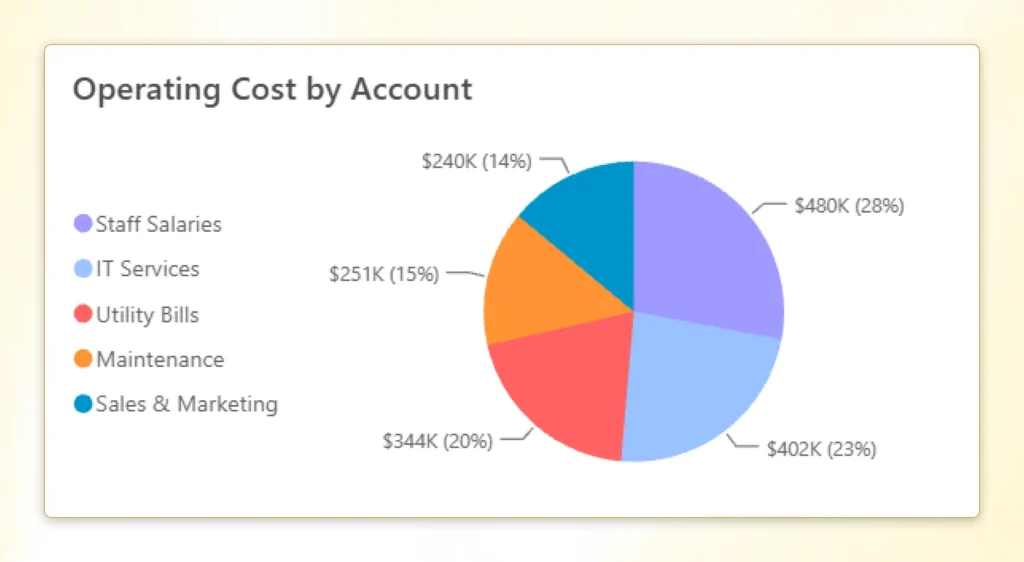
The most granular version of the budget comparison is broken down at cost centre level with drill-through to the individual GL entries driving each variance. When a department is over budget, this is the report the financial controller opens to find out exactly which line items caused it. With Power BI row-level security for Business Central, each cost centre manager sees only their own variance. The CFO sees everything. When permissions are set once at the data model level they are enforced across every report.
View our Financial Dashboards in Business Central dashboards→
From Two Days to Two Hours: The IKEA Case
IKEA’s finance team had a daily sales report problem. Every morning, someone had to manually extract sales data from Business Central, format it across multiple outlet categories, and distribute it to the relevant managers. A report that should have been automatic was instead a daily manual task and across the full reporting cycle, it was consuming close to two working days of someone’s time every week.
The core issue was not the data. Business Central held everything correctly but the problem was that getting it out in a usable format, at the right frequency, to the right people, required human intervention every single time. There was no pipeline. There was no scheduled refresh. There was a person doing the same extraction and formatting process every morning, manually.
Global Data 365 connected Business Central to Power BI through Jet Analytics building a data model that pulled daily sales entries automatically, applied the correct outlet and category structure and distributed the finished report on a schedule.
The result: a report that was taking two days to produce now completes and distributes in under two hours automatically, every day, without anyone touching it. The finance team member who was spending that time on production is now spending it on analysis.
This is the practical return on a Power BI financial reporting implementation for Business Central. Not a visual improvement but a fundamental change in how financial data moves from the ERP to the people who need it. The budget comparison, the cash flow view, the AR ageing report all generate the same reaction when a finance team sees them working properly for the first time: not because they look impressive, but because they answer questions the CFO has been asking every month that nobody could answer cleanly before.
Read our case study of how we implemented Reporting for Business Central at IKEA→
How a Power BI Financial Dashboard Implementation for Business Central Works
The implementation has three stages.
Stage 1: Data model.
The star schema is built outside Business Central: fact tables for GL, AR, AP, cash and budget; dimension tables for department, cost centre, project, customer and item. This is where most of the implementation time is spent and where the accuracy of every number downstream is decided.
Stage 2: DAX measures.
Every financial calculation such as budget variance, gross margin, DSO, cash projection, intercompany elimination is defined as a DAX measure inside the Power BI semantic model. Written once, reviewed, fixed. The same formula runs under every filter, for every user, on every refresh.
Stage 3: Reports and access.
The 8 reports above are built on top of the model. Row-level security is configured when finance team members are onboarded. From this point, the team builds and modifies their own reports without involving IT or a developer.
The Power BI financial dashboard implementation cost for Business Central is a one-time investment. The data model and DAX measures serve every report the business will ever need including the ones your CFO has not asked for yet.
The Reports Your Finance Team Needs Are Already in Business Central
Your data is there. It always was. But business central has been holding your GL entries, your budget figures, your AR balances, your daily sales accurately, consistently, every posting your business has made.
What has been missing is not the data but the reporting layer that makes it accessible without a developer, usable without an IT ticket and automatic without a person running the same extraction every morning.
A Power BI financial dashboard implementation for Business Central builds that layer once. The data model handles the complexity. The DAX measures handle the calculations. The scheduled refresh handles the distribution. And from that point, your finance team spends their time on what the numbers mean not on producing them.
Get Power BI financial dashboard for your Business Central environment
Search Blog
Related Resources

Healthcare Analytics Dashboard for Hospitals
Power BI Dashboard for Manufacturing Companies
Business Central Dashboards with Power BI